VJ Glossary — Must-Know VJ Terms, Explained
VJing has a vocabulary problem: half the words sound like broadcast engineering, the other half like club slang. This glossary covers the terms that actually come up — starting with the five every beginner needs, then everything you'll meet as you go deeper. Bookmark it; link any term directly.
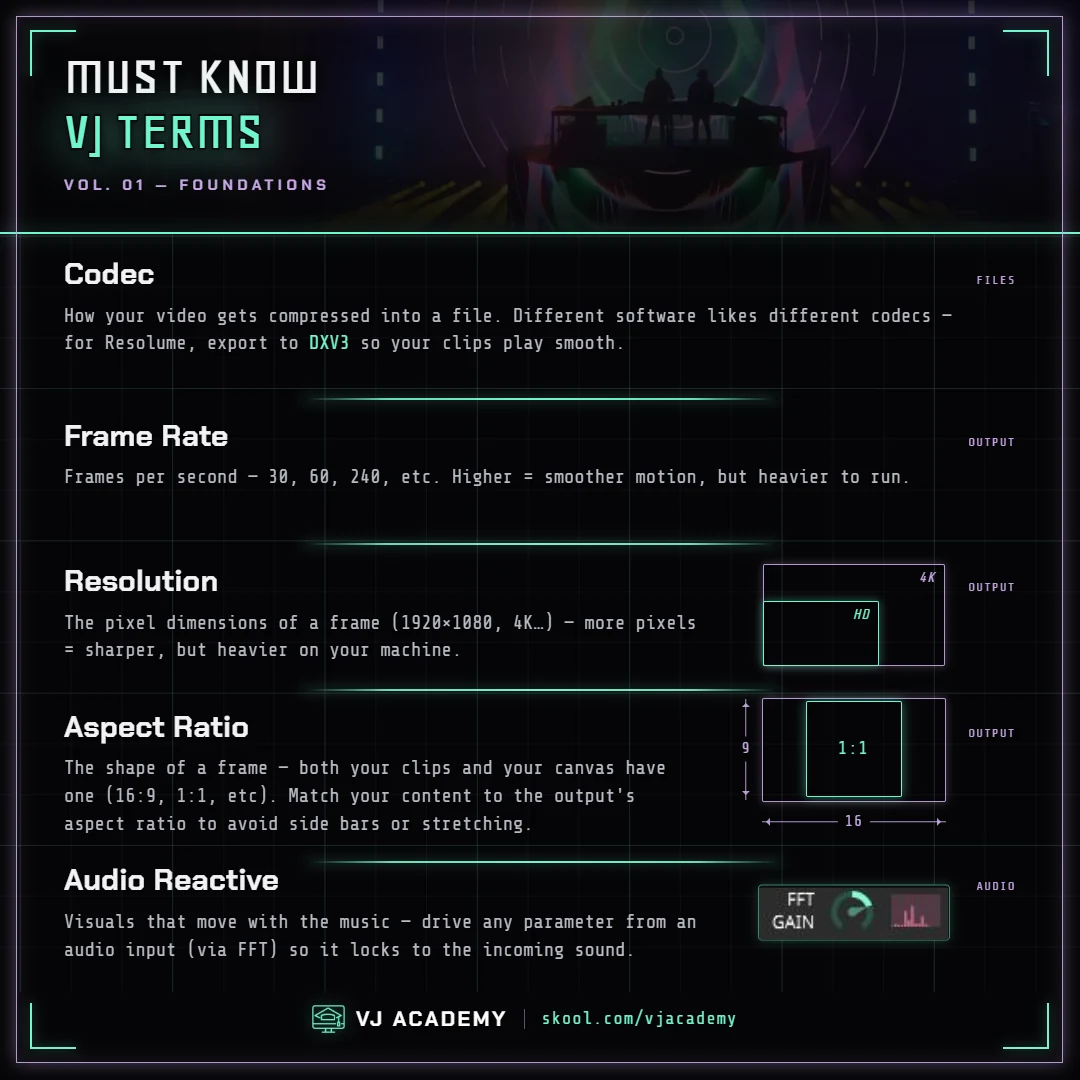
The Basics
The five terms every VJ needs before anything else — plus the one that keeps you in time.
- Frame rate (fps)
- How many frames per second a clip plays or your software renders — e.g. 60fps. It's a core property of your composition, alongside resolution and BPM. Standard VJ content runs 25-30fps; 60fps earns its keep for camera footage and fast motion. Live note: 30fps content on a 60Hz output is fine — Resolume handles it. Encoding above your output's refresh rate just wastes GPU.
- Aspect ratio
- The width-to-height proportion of an image or screen — 16:9 is the standard widescreen shape. It decides how content fits a surface: "Fit" scaling preserves the ratio by letterboxing, "Fill" preserves it by cropping, and LED walls often come in wild non-standard ratios you'll map with slices.
- Resolution
- The pixel dimensions of an image or output — e.g. 1920×1080. Match your content resolution to your output resolution: content bigger than the output wastes GPU, because Resolume still decodes every pixel before downscaling. Live note: GPU load scales with pixel count — 4K is roughly 4× the load of 1080p.
- Codec
- The compression format a video file uses — and the single biggest performance factor in Resolume. The split that matters: GPU-decoded codecs (DXV, HAP) decompress in parallel on the graphics card; CPU-decoded codecs (H.264, H.265, ProRes) decode sequentially on the processor. Live note: Even one H.264 clip in an otherwise-DXV composition can bottleneck the CPU and drop frames across the whole mix. Convert everything.
- Audio reactive
- Visuals that respond to sound in real time. Resolume drives this with FFT analysis, which splits incoming audio into frequency bands so any parameter — scale, color, opacity, effects — can be modulated by bass, mids, or treble. Live note: Map the background to sub-bass (slow and heavy), mids to melody, highs to fine detail — frequency-separated depth. Tune Gain and Fall so motion feels musical, not jittery.
- BPM sync
- Locking clip speed and animations to the master tempo (Beats Per Minute) so content stays in time with the music. Set it by tap tempo, direct entry, or an external source; Resync snaps everything back to the downbeat of a phrase.
Files & Codecs
- DXV
- Resolume's proprietary GPU-accelerated codec and the recommended format for everything you play in Resolume. Frames decompress directly on the GPU — higher resolutions and more layers at a fraction of the CPU and RAM cost. Current version is DXV3, with Normal and High quality modes and optional alpha. Live note: Stuttering? Converting to DXV is almost always the answer. DXV3 Normal also has the fastest seek (~1 frame) for scrubbing.
- HAP
- An open-source GPU-decoded codec that performs nearly identically to DXV but plays in many apps — TouchDesigner, VDMX, MadMapper, Isadora. Choose HAP for cross-app pipelines; choose DXV for Resolume-only work (smaller files, faster seeking). HAP files run ~2-4× larger than DXV.
- ProRes
- Apple's high-quality CPU-decoded codec. ProRes 4444 preserves an alpha channel (regular 422 doesn't) and makes a great interchange/master format — but it isn't GPU-accelerated in Resolume, so it's only comfortable for a few layers.
- H.264 / H.265
- Efficient storage and streaming codecs — great for YouTube, wrong for the stage. They're CPU-decoded with inter-frame compression, which means stuttering under multiple layers and slow seeking. Convert to DXV before you perform.
- Alley (Resolume Alley)
- Resolume's free batch converter, bundled with Arena and Avenue. Drag files in, pick a codec (defaults to DXV3), hit Convert — it uses every CPU core and can also turn image sequences into video.
- Alpha channel
- A fourth channel (after R, G, B) baked into a file that defines exactly which pixels are opaque, transparent, or in between. It's the cleanest way to composite — no blend-mode brightness stacking, no color shifts. The file must actually contain alpha: encoding "With Alpha" doesn't conjure transparency from a black background. Live note: Set the layer's blend mode to Alpha (not the default Add) or the transparency is ignored — the #1 mistake with alpha content.
Resolume Concepts
- Composition
- Your entire Resolume project — the top-level container that sets resolution, frame rate, BPM, and color depth. Saved as an .avc file; one runs at a time.
- Deck
- A named page of clips inside a composition. Switching decks swaps your whole content set without stopping what's playing — the layer structure carries across.
- Layer
- A horizontal row in the clip grid that plays one clip at a time. Layers stack — each with its own opacity, blend mode, and effect chain. The backbone of live mixing: background, mid, accent.
- Clip
- The atomic unit of content — one cell in the grid. A clip can be a video, image, audio file, real-time source, or effect clip, each with its own speed, direction, loop mode, BPM sync, and effects.
- Column
- A vertical slice across all layers. Triggering a column fires one clip per layer at once — a scene change in a single click. Empty cells mean "leave that layer alone."
- Group (Arena only)
- Bundles multiple layers into a sub-composition treated as one unit — shared effects, transform, mask, opacity, and blend mode, plus routing to a specific output slice. The rule: what happens in a group never leaves that group. Groups can't be nested.
- Source
- A real-time content generator — color, gradient, noise, shapes, text, video router — that creates visuals on the GPU with no video file involved. Loads into a clip slot like any clip.
- Blend mode
- How a layer's pixels combine with the layers below. Resolume ships 28+ modes; the default is Add, which makes black pixels transparent — handy for the black-background loops most VJs run. Full breakdown in our blend modes lesson.
- Luma key
- Removing parts of an image by brightness rather than color: Luma Key drops the darkest pixels first, Inverted Luma Key drops the brightest, and a Smoothing slider cleans the edges. The go-to for mixing content that has no alpha channel.
- Mask / Mask Mode
- Using one layer's black-and-white values to show or hide the layers beneath: white reveals, black hides, gray goes partial. Mask Mode targets the whole stack (All Below) or just the next layer down (One Below) — like an After Effects track matte.
- Crossfader
- A DJ-style A/B fader that blends between two sets of layers. Assign layers to bus A, bus B, or neither (always-on), then ride one slider — or one MIDI fader — between the two mixes.
- Transform
- Position, scale, rotation, and anchor-point controls, available at clip, layer, group, and composition level — and they stack down the hierarchy. Extra Transform instances can be added as effects for orbit and picture-in-picture moves.
- Dashboard
- A macro panel that ties multiple parameters to one dial, so a single knob drives a whole look — say, an "Energy" macro that pushes blur, saturation, strobe, and scale together. Mappable to MIDI and OSC.
- Envelope
- A curve that shapes how a parameter animates — turning a linear ramp into ease-in/out, bounce, elastic, or stepped motion. It sits between any animation source (BPM, FFT, MIDI, timeline) and the parameter it drives.
- Effect clip
- An effect loaded into a clip slot that processes everything beneath it without replacing content — Resolume's version of a Photoshop adjustment layer. Think global color grade, or a rhythmic strobe over the whole mix.
- Autopilot
- Automated clip sequencing — advance by seconds, beats, or clip length, at composition, group, layer, or clip level, with forward/random/bounce direction modes. Your manual triggers always override it.
- Feedback loop
- Feeding an image back into itself — via the Feedback effect or by routing output back to input — so spirals, tunnels, and fractal trails build up over time. One of the most important generative effects there is. Live note: Start low (50-70%) or it whites out fast.
- Generative visuals
- Visuals created in real time from code, parameters, and algorithms instead of pre-rendered video — built-in Sources, stacked effects, or Wire patches. The payoff: infinite non-repeating variety, native audio reactivity, and almost zero storage.
Effects & Custom Visuals
- Shader / GLSL
- A small program that runs on the GPU, processing many pixels in parallel. GLSL is the shading language behind Resolume's FFGL plugin ecosystem — the same GPU cores that decode DXV also run your effects.
- FFGL (FreeFrame GL)
- The open standard for GPU-accelerated third-party effect plugins in Resolume. Plugins (.dll on Windows, .bundle on macOS) drop into the Extra Effects folder and show up after a restart.
- ISF (Interactive Shader Format)
- A shader-based effect format that runs in Resolume via FFGL and Wire — you can author ISF shaders directly inside Wire's ISF nodes.
- Wire
- Resolume's node-based visual programming environment for building custom effects, sources, and mixers without writing C++ — like patching a modular synth for video. Patches expose parameters, read FFT audio, and appear straight in Arena's Effects and Sources panels.
Signal & Integration
- MIDI / MIDI mapping
- The universal protocol for hardware control — buttons, faders, knobs. Any class-compliant USB MIDI device works with Resolume; MIDI Learn (Ctrl/Cmd+Shift+M) maps a control by clicking it and moving the hardware. Values run 0-127.
- OSC (Open Sound Control)
- Network-based remote control with full floating-point precision and readable addresses like /composition/layers/1/video/opacity. Every Resolume control has a fixed OSC address; default input port is 7000 over UDP. Finer-grained than MIDI's 128 steps.
- DMX
- The lighting industry's control protocol — 512 channels per universe, values 0-255. Arena (not Avenue) can be driven from a lighting desk via DMX, which is how VJ rigs get folded into a lighting operator's show.
- Art-Net
- DMX carried over a standard Ethernet network. Arena speaks Art-Net only for DMX in/out (USB DMX boxes aren't supported), so a desk outputting physical DMX needs a converter. Devices must share an IP range — commonly 10.x.x.x or 2.x.x.x.
- SMPTE timecode
- An audio signal that encodes a running timestamp (HH:MM:SS:FF). Arena decodes it to lock a clip's playhead to pre-recorded audio for frame-accurate show sync (Arena-only). It positions the playhead — it doesn't trigger clips — and the framerate must match the source.
- Ableton Link
- An open protocol that syncs tempo and beat position across every app and device on a network — the modern replacement for MIDI Clock. Zero configuration, and every participant is equal: anyone can nudge the shared BPM.
- FFT (Fast Fourier Transform)
- The math that turns an audio signal into its component frequency bands — Low, Mid, High — so any parameter can be driven by sound. Wire exposes 1,024 individual bands if you want surgical control.
- NDI
- Video over a standard Ethernet network, between different machines — like Spout/Syphon but across computers. Budget ~150 Mbps per 1080p60 stream and real CPU for encoding. Wired gigabit only; never WiFi for production.
- Spout / Syphon
- Zero-copy GPU texture sharing between apps on the same computer — Spout on Windows, Syphon on macOS. Near-zero latency, no compression. If both apps live on one machine, always prefer this over NDI.
- Capture card
- Hardware (Blackmagic, AJA, Datapath) that brings camera, SDI, or HDMI feeds into Resolume — the lowest-latency path for live camera work. Both editions can take input from capture cards; only Arena can output through them via SDI.
Stage & Output
- Slice
- A region of your composition that gets captured and routed to a screen output, defined in the Input Selection stage of Advanced Output. Each screen can hold many slices, they can overlap, and Arena adds polygon slices to Avenue's rectangles.
- Slice Transform (Arena only)
- An effect that places content across multiple slices at once, with per-slice scaling modes (Fill, Fit, Stretch, Mask, Invert Mask) and per-slice solo, bypass, and mirror. The simple tool for multi-screen content placement — full walkthrough in our Slice Transform lesson.
- Slice routing (Arena only)
- Sending an individual layer or group directly to a specific output slice, bypassing the main mix — each screen shows only its assigned content. Note: blend modes and composition-level effects don't apply to layer-routed slices.
- Output Transformation (Arena only)
- The second stage of Advanced Output, where pixels get physically aligned to real surfaces — perspective, linear, and Bezier warping, masking, per-slice flip and color correction. Input Selection picks which pixels; Output Transformation controls where they land.
- Projection mapping
- Warping and masking video so it lands precisely on real physical geometry — buildings, cubes, stage sets — instead of a flat rectangle. Basically digital tracing with light. It's a technique, not one product: in Resolume it takes Arena (Avenue can't warp), and dedicated tools like MadMapper do it too.
- Keystone / perspective warp
- Correcting the trapezoid distortion you get when a projector isn't square to the surface. Arena's perspective warp uses a slice's four corner points to compensate — rectangular slices only.
- Edge blending (Arena only)
- Stitching two or more overlapping projectors into one seamless image by fading each projector's overlap zone until the seam disappears — tuned with gamma, power, luminance, and black-level compensation. Plan for at least 15% overlap. Live note: Edge blending and complex Bezier/polygon warping don't mix on the same slices — use the virtual-screen workaround to do each in its own stage.
- Throw ratio
- How a projector relates image size to distance: throw distance = throw ratio × image width. Under 0.5 is ultra-short throw; over 2.5 is long throw. Project as straight-on as you can to keep resolution and brightness.
- Lumens
- Projector brightness. The image has to beat the ambient light: roughly 3,000-5,000 lumens for a dark room, 10,000-20,000 outdoors after sunset, 20,000+ in high ambient light — at which point an LED wall usually wins.
- LED wall / pixel mapping (Arena only)
- Arena drives LED strips, panels, and fixtures by sampling colors from your composition and sending them as DMX over Art-Net. Match content resolution to the LED's actual pixel dimensions or you're paying for upscaling artifacts.
- Lumiverse
- A feature name inside Resolume Arena — its container for DMX lighting, like a Screen but for lights instead of video. Each Lumiverse holds one or more 512-channel Art-Net universes with its own brightness and color. Niche: it only matters if you're driving DMX lights straight from Arena.
- Arena vs Avenue
- Resolume's two editions. Avenue (€299) covers clip mixing and clean full-screen output; Arena (€799) adds the staging arsenal — groups, polygon slices, output warping, edge blending, slice routing, DMX/pixel mapping, SMPTE, and SDI output. Full breakdown in our Arena vs Avenue guide.
Go Deeper Than Definitions
Knowing the words is step one — using them at a show is the fun part. Our free lessons walk the core concepts in practice: layers, blend modes, masking, codec conversion, audio reactivity, and slice transform — plus the full Arena vs Avenue breakdown. And inside the Academy: 100+ tutorials, exclusive plugins, and 600+ VJs who speak this language daily.
Frequently Asked Questions
What is DXV in Resolume?
DXV is Resolume's own GPU-accelerated video codec — frames decompress directly on the graphics card instead of the CPU, so you can play higher resolutions and more layers without stuttering. It's the recommended format for all content you perform with in Resolume. Convert anything else using the free bundled Alley converter.
What does audio reactive mean in VJing?
Audio reactive visuals respond to sound in real time. In Resolume this runs on FFT (Fast Fourier Transform), which splits incoming audio into frequency bands — bass, mids, treble — so any parameter (scale, color, opacity, effects) can be driven by the music instead of animating on its own.
What codec should VJs use for live performance?
A GPU-decoded codec: DXV if you work only in Resolume, or HAP if your content also needs to play in other apps like TouchDesigner, VDMX, or MadMapper. Storage codecs like H.264 and H.265 are CPU-decoded and cause stuttering and slow seeking with multiple layers — convert them before the show.
What's the difference between Spout, Syphon, and NDI?
All three route live video between applications. Spout (Windows) and Syphon (macOS) share GPU textures between apps on the SAME computer with near-zero latency. NDI sends video across a network between DIFFERENT computers — flexible, but it costs CPU and bandwidth (~150 Mbps per 1080p60 stream), so use wired gigabit and never WiFi for production.
What is projection mapping?
Making video land precisely on a real 3D object — a building, a cube, a stage set — instead of playing in a flat rectangle. It's a technique any capable tool can do: in Resolume it takes Arena (not Avenue), and MadMapper is the other common choice. Our beginner projection mapping guide walks you through actually setting it up.
Definitions sourced from the VJ Academy knowledge base, July 2026. Spot something off? Email vjacademy@outlook.com.