Resolume Lagging? How to Fix Dropped Frames
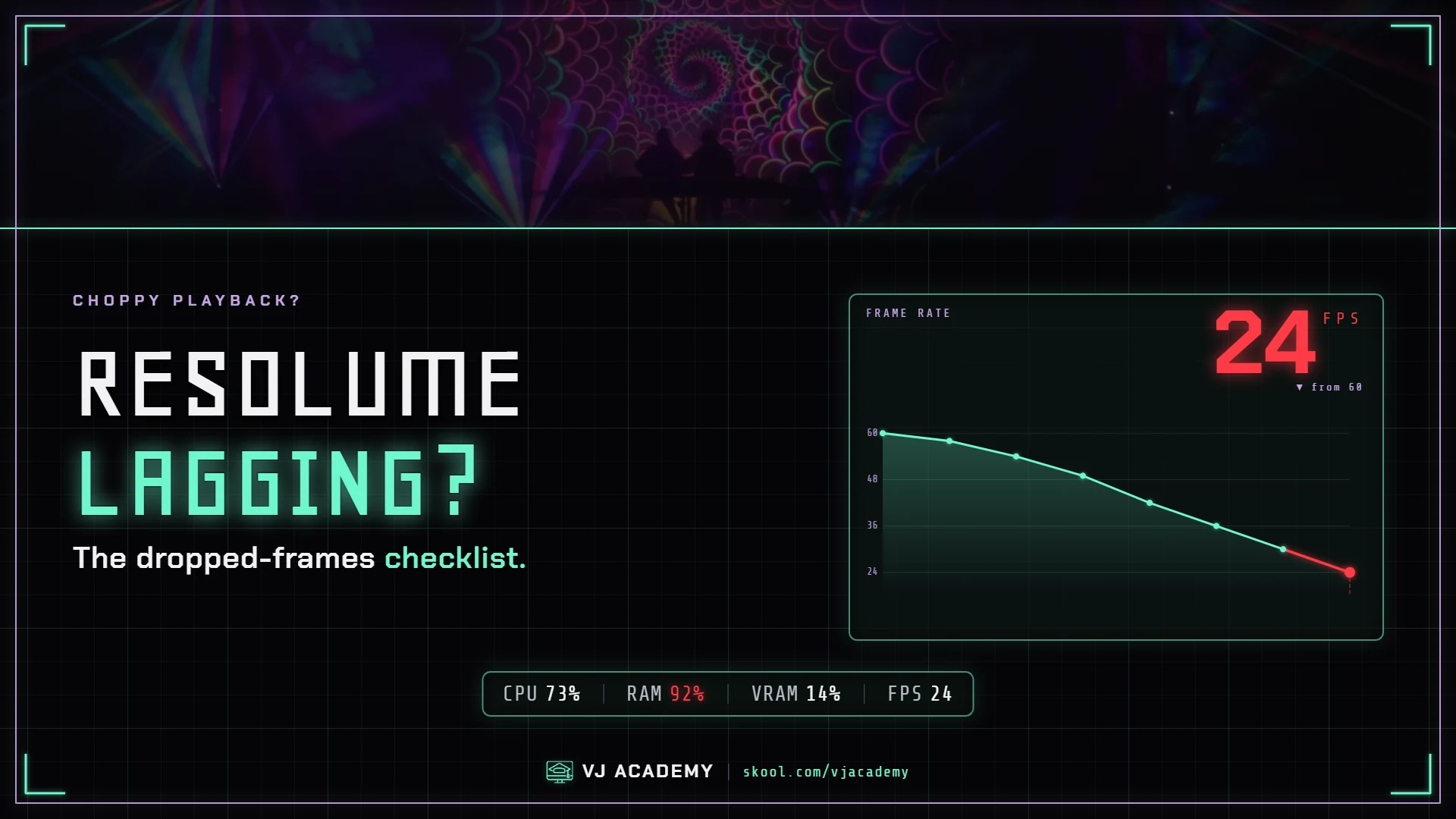
The short answer: Resolume lag almost always comes down to three things — the wrong codec, a misconfigured GPU, or system settings choking performance. The #1 offender by far is H.264/H.265 content, which forces your CPU to do work your GPU should be doing. Converting your content to DXV fixes roughly 90% of cases. This guide covers that fix and every other documented cause, in order of likelihood.
If You're Mid-Show Right Now: the Emergency Procedure
- Bypass unused layers — the eye icon, not the opacity slider. Layers at 0% opacity still eat GPU.
- Remove heavy effects — blur and distortion effects are the expensive ones. Every effect is another render pass.
- Switch to lower-resolution backup content if you have it.
- Close background apps — browsers, cloud sync, chat.
- Between sets, restart Resolume — the most effective way to clear cached resources after hours of running.
Crisis managed? Good. Now let's fix it properly so it never happens again.
Step 1: Read the FPS Counter (Your Diagnostic Dashboard)
Resolume shows its health in the title bar FPS counter. It should match your output's refresh rate — typically 60. Below that, something's wrong. Open Task Manager → Performance (Windows) alongside it and the numbers tell you which problem you have:
| What you see | What it means | Jump to |
|---|---|---|
| CPU near 100% | CPU-decoded codecs — H.264/H.265 content (the most common cause by far) | The codec fix |
| GPU near 100% | Too many layers/effects, or content resolution above output resolution | Reducing GPU load |
| Neither maxed, still low FPS | Wrong GPU active (laptops), GPU power throttling, or mismatched output refresh rates | The laptop GPU trap |
Mac note: don't trust Activity Monitor's GPU percentage for Resolume — macOS's WindowServer inflates it badly. Judge by the title-bar FPS counter.
Step 2: The #1 Fix — Convert Your Content to DXV
H.264 and H.265 are the number-one cause of Resolume performance problems. They're storage codecs, decoded on the CPU one frame after another — great for YouTube, terrible for mixing six layers live. Even a single H.264 clip can bottleneck your CPU and drop frames across the entire composition. Playing H.264 in reverse? Almost guaranteed stutter.
DXV — Resolume's own codec — decompresses on the GPU instead. The difference isn't subtle:
| Codec (1080p, multi-layer) | Behavior |
|---|---|
| H.264 | Stutters at 3 layers, unusable at 6 |
| DXV3 | Smooth at 6 layers |
The fix, step by step:
- Check what you're playing: right-click a clip → Properties. If the codec says H.264, H.265, or MPEG — found it.
- Open Resolume Alley (the free converter installed alongside Resolume).
- Drag your files in, select DXV3 Normal Quality, hit Convert → Queue. Alley uses every CPU core; batch your whole library overnight if needed.
- Working across apps like TouchDesigner or MadMapper too? Use HAP instead — same GPU-decoded benefit, plays everywhere.
Yes, DXV files are bigger — that's the trade. Storage is cheap; dropped frames at a show are not. Full walkthrough in our codec conversion lesson.
Step 3: The Laptop GPU Trap (NVIDIA Optimus)
On laptops with both integrated and discrete graphics, Resolume can silently run on the weak integrated GPU. There's even a
cursed detail: NVIDIA ships a game profile for "Total War: Arena" that
targets Arena.exe — the same executable name as Resolume
Arena — and misconfigures it.
The fix (NVIDIA):
- Open NVIDIA Control Panel → Manage 3D Settings → Program Settings.
- Select Resolume Arena (Add →
C:\Program Files\Resolume Arena\Arena.exeif it's not listed). - Set Power management mode → Prefer maximum performance and Preferred graphics processor → High-performance NVIDIA processor. While you're there: Triple Buffering On, Vertical Sync Off, Threaded Optimization On.
- Apply, restart Resolume.
AMD laptop? Radeon Software → Gaming → add Resolume → GPU Workload Graphics, Power Mode Performance, Anti-Lag and Radeon Chill Disabled.
The venue quick trick: make the external screen your primary display, launch Resolume, then drag the interface window back to the laptop screen — output renders through the discrete GPU.
Step 4: Reduce the GPU Load Itself
- Bypass what you're not using. Every active layer costs GPU even at 0% opacity — use the eye icon.
- Audit your effects. Each one is a render pass; blur and distortion are the heaviest.
- Match content resolution to output resolution. Resolume decodes every pixel before downscaling — 4K content on a 1080p output is pure waste. The load scales hard: vs 1080p, 1440p is ~1.8× and 4K is ~4×.
- Match refresh rates on every display. Resolume caps its FPS to the slowest connected output — one 30Hz projector drags the whole rig down.
- Heavy content, older GPU? Dropping the composition to 30fps is a legitimate move — most VJ loops are 30fps and run fine there anyway.
Step 5: Stop Windows From Sabotaging You
Windows ships configured for battery life and gaming pop-ups, not live shows:
- Power plan → High Performance (Control Panel → Power Options). In advanced settings: PCI Express Link State Power Management Off, processor minimum 100%, USB selective suspend Disabled (that one saves your MIDI controller mid-set).
- Kill the game stack: GeForce Experience overlay/Shadowplay off (it injects into Resolume's render pipeline thinking it's a game), Xbox Game Bar and Game Mode off.
- Defender exclusions for the Resolume folder and your content drives; pause Windows Update on show days; disable Search indexing on content drives.
- Drivers from nvidia.com/amd.com, never Windows Update — Windows quietly replaces good drivers with generic ones and undoes your profile settings. Re-check after every Windows update.
- Preferences → Video → DMA Textures → Force ON for best performance on modern hardware.
Step 6: The Slow Killers — Heat and Long Sessions
Performance that starts strong and decays over an hour is either thermal or memory. GPUs throttle themselves above roughly 85-90°C — check with GPU-Z or HWiNFO. Laptop vents clear, hard surface, cooling pad if festival-summer. Outdoor daytime shows are the classic killer — direct sun on a dark laptop cooks it fast, and we've watched more than one machine overheat mid-set in the heat. Shade the laptop, keep it out of direct sunlight, and keep air moving over it. (This is exactly why our laptop pick has a built-in liquid-cooling loop.) On long shows: remove unused clips from the comp to free VRAM, and restart Resolume between sets.
The Numbers That Matter (Bookmark This)
| Spec | Guidance |
|---|---|
| Target FPS | Match output refresh rate — typically 60 |
| VRAM | 6GB handles most setups · 8GB+ for 4K or multi-output · 12GB+ for 4K multi-output |
| GPU load by resolution | 720p = 0.5× · 1080p = 1× · 1440p = 1.8× · 4K = 4× |
| Audio buffer | 512 for live VJing · 1024 for fixed installs |
| GPU temperature | Above 85-90°C = throttling — fix airflow |
| NDI budget | ~150 Mbps per 1080p60 stream — wired gigabit, never WiFi |
| Storage | ~200 DXV3 clips at 1080p ≈ 60-100GB — NVMe SSD recommended |
One more: sending video between apps on the same machine? Use Spout (Windows) or Syphon (Mac), not NDI — zero-copy GPU sharing with no CPU encoding cost.
Frequently Asked Questions
Why is Resolume lagging even though my computer is powerful?
Nine times out of ten it's the codec, not the computer. H.264 and H.265 are CPU-decoded storage codecs — the #1 cause of Resolume performance problems — and even one H.264 clip can bottleneck an entire composition. Convert everything to DXV with Resolume Alley. On laptops, also confirm Resolume is actually using the discrete GPU and not the integrated one.
What FPS should Resolume run at, and how do I check?
Look at the FPS counter in Resolume's title bar. It should match your output's refresh rate — typically 60. If it reads below that, you have a performance problem worth diagnosing.
I lowered a layer's opacity to 0% but it's still lagging — why?
Layers and effects at 0% opacity still consume GPU — Resolume keeps decoding and compositing them. You have to actually bypass the layer (the eye icon). Opacity is not the same as bypass.
It stutters on the projector but looks fine on my laptop screen — what's wrong?
Classic NVIDIA Optimus problem: Resolume is silently running on the integrated GPU. It's made worse by an old NVIDIA game profile for 'Total War: Arena' that hijacks Arena.exe. Fix it in NVIDIA Control Panel — set Resolume to the high-performance NVIDIA processor with Prefer Maximum Performance — or use the display-swap trick: make the external screen primary, launch Resolume, then drag the interface window back to the laptop screen.
Resolume runs fine at first but gets choppy after an hour — why?
Usually thermal throttling — once the GPU passes roughly 85-90°C it slows itself down — or VRAM slowly filling over a long session. Improve airflow (vents clear, hard surface, cooling pad), remove unused clips from the composition to free VRAM, and restart Resolume between sets to clear cached resources.
What's the single most important upgrade to stop dropped frames?
The GPU — it matters more than CPU, RAM, or storage for Resolume. 6GB of VRAM handles most setups; go 8GB+ for 4K or multi-output work. But spend nothing until you've converted your content to DXV and configured the GPU correctly — those two free fixes solve most cases.
Never Debug Alone at 1 A.M. Again
This guide covers the documented fixes — but every rig is its own animal, and sometimes you need a second pair of eyes an hour before doors. Inside the Academy: live troubleshooting from 600+ working VJs, 100+ tutorials, and the deep-dive courses behind every fix on this page.
Sourced from the VJ Academy knowledge base, July 2026. Setup still misbehaving? Email vjacademy@outlook.com.